One badge for your exhibitors’ whole team
You give exhibitors logos, banners and a well-stocked exhibitor toolkit. Not much of it gets posted, because a banner shows nobody you could meet at the event. With a team badge, one person per company uploads their colleagues’ photos and passes the finished image on, so everyone can share it from their own profile. It works the same way for sponsors and partners.

What is a team badge?
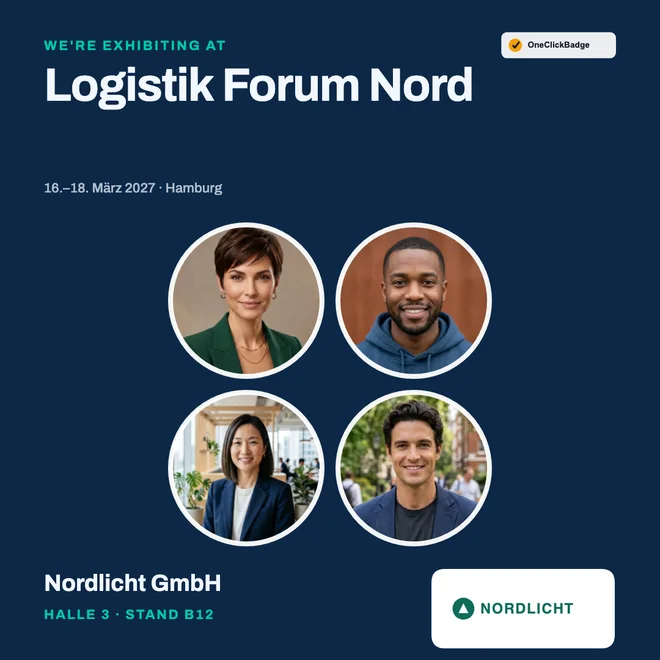
A team badge is a LinkedIn image that shows several people from one company together, with the event name, date, venue and, if you like, the company and booth. You design it once in your event’s look. One contact person per exhibitor uploads their team’s photos, the template arranges the people, and anyone on the team can post the finished image.
Why exhibitors so rarely post
The exhibitor toolkit is usually well stocked: logos in several formats, a “Visit us” banner, maybe a suggested post. Even so, it often ends with a single post on the company page. Willingness is rarely the issue. A banner shows no people, and someone traveling to a trade show for their company is reluctant to put an ad on their personal profile.
With their own faces on it, the image becomes personal. It shows who is coming and who you can talk to at the show. People like sharing that, and for their contacts it’s a post from someone they know. The sample calculation on the network effect shows how much reach sits in the profiles of guests and exhibitors.
How it works: four steps from link to post
You set up the badge once. After that, one contact person per exhibitor does the actual work, and the whole team can share the result.
Setting up the badge: what you configure as the organizer
You need an additional badge with a template that has room for several photos. Four places in the product matter here:
- When you create the event, open “More badge types (optional)” and add an extra badge. You pick the name yourself, such as “Exhibitor”, “Sponsor” or “Partner”. Every additional badge gets its own link.
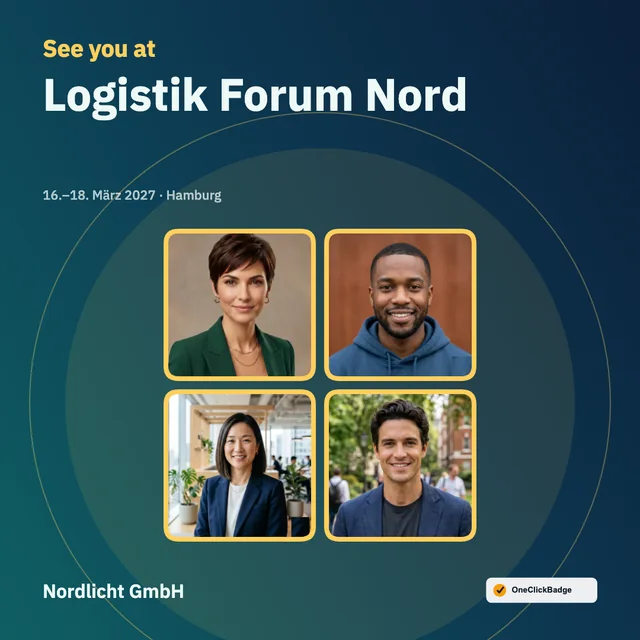
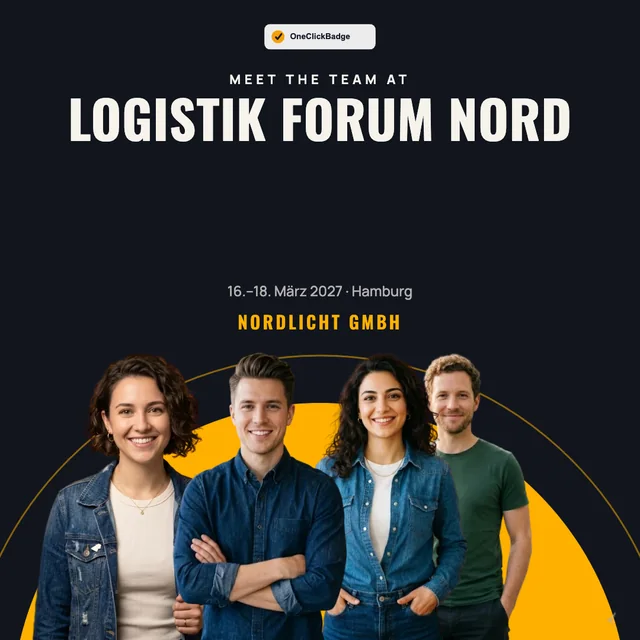
- In the template picker, filter by the “Team” tag. “Framed” and “Cutout” narrow the selection down further.
- In the editor, use “Team photos” to decide whether people appear in a frame or as cutouts, and how they are laid out. Colors, fonts and logo work the same as in any other template. If you build your own design, select “Team” under “What is the field for?” for an image field.
- In event management, go to “Suggested post text” and set “Who gets this badge?” to “Exhibitors”. The contact person then gets post texts in the “we” voice that suit anyone on the team.
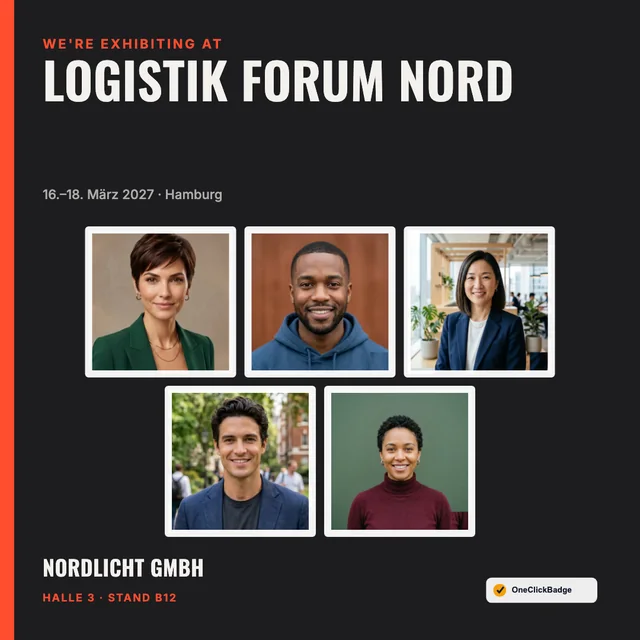
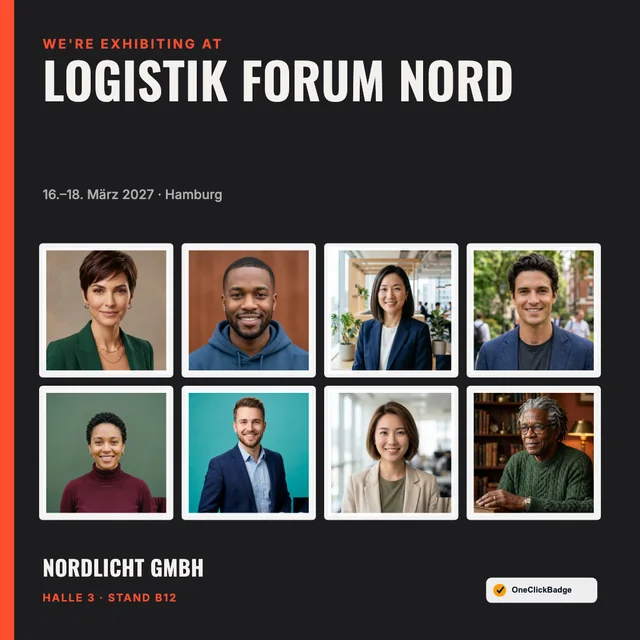
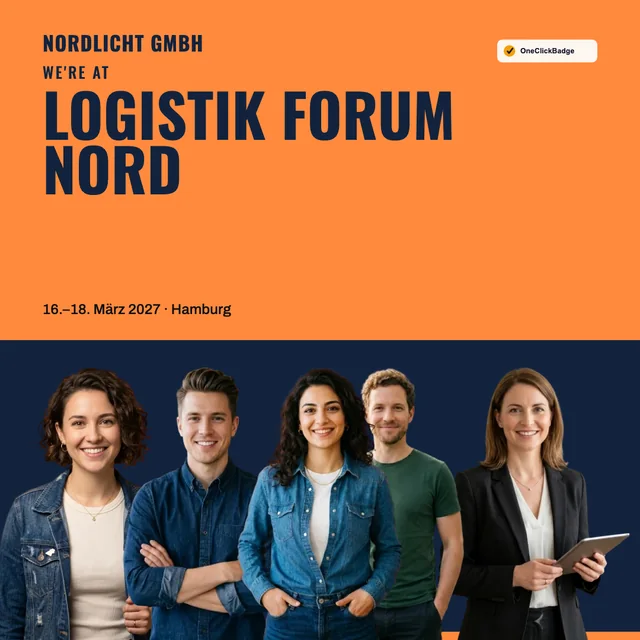
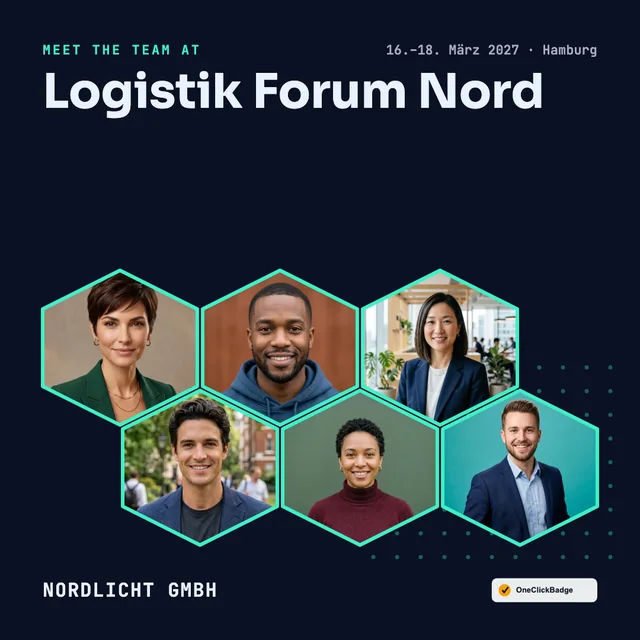
Whether you go with framed photos or cutouts is mostly a matter of style. In a frame, each photo stays as it is, background included. With cutouts, the page removes each person’s background, and the team stands together on the surface of your design. A mix of phone snapshots, studio shots and pictures from the company website often looks more consistent as cutouts.
What the exhibitor’s contact person does
The contact person opens your link on a phone or computer and doesn’t need an account. In the team photo area, they tap “Add photos” and select several pictures at once. The easiest way is to collect the photos beforehand in the team chat or by email. They also enter the company name and, if your template has a field for it, the hall and booth.
The template arranges the people on its own and scales them to the number of photos. The order can be changed with “Move left” and “Move right”, and they can tap any photo to adjust it individually. With cutout templates, the background removal runs in the browser on their device, and the photos aren’t uploaded for it. You can read more in the article Badges and data privacy.
One image for everyone: getting the team image to colleagues
Once the image is ready, the contact person taps “Share image + text” on their phone. The phone’s share menu opens, and the image and suggested text go straight to colleagues via a messaging app, Teams or email. On a computer, the same button downloads the image and copies the text to the clipboard. Some apps only take the image when sharing, in which case the text follows as a second message.
Everyone on the team then posts the same image from their own profile. To keep the feed from filling up with identical posts, it’s worth adding one personal sentence each: what they’re presenting, what they’re working on right now or who they’d like to meet. That way every post remains a recommendation from a person who will be there.
Anyone who also wants a badge with just their own photo can get one through the shared badge selection. There you offer the team badge and the individual badge under one link, and each person takes what they need.
The team badge in your exhibitor toolkit
The link works best where exhibitors already look for material: in the exhibitor toolkit, the exhibitor portal or the email with the logistics for move-in. A short paragraph is enough if it says who on the team has to do something and what they get at the end.
Your team badge for LinkedIn

Show who’s at your booth before the show even starts: one person from your team opens this link, uploads their colleagues’ photos and adds your company and booth. They send the finished image to the team, and everyone can post it from their own profile. Nobody needs an account for this.

[BADGE LINK]
Ideally, you send the link along with the kit. A single reminder two to three weeks before the show is usually enough, just as with speakers. How to word that reminder without nagging is covered in the guide Get speakers to post.
Team badge, individual badge or logo pack compared
Which route fits depends on who you want to show. You can also combine them, for example a team badge for exhibitors and an individual badge for speakers.
| Team badge | Badge per person | Logo pack in the kit | |
|---|---|---|---|
| Who does the work? | One person for the whole team | Each person fills in their own badge | Each exhibitor builds an image themselves |
| What does the image show? | The team with the company, booth optional | One person with name and photo | Logo and event name |
| Who posts? | Everyone on the team, same image | Each person their own image | Usually just the company page |
| A good fit when | a whole team is coming to the event | individuals are the focus, such as speakers | you mainly want to show brands |
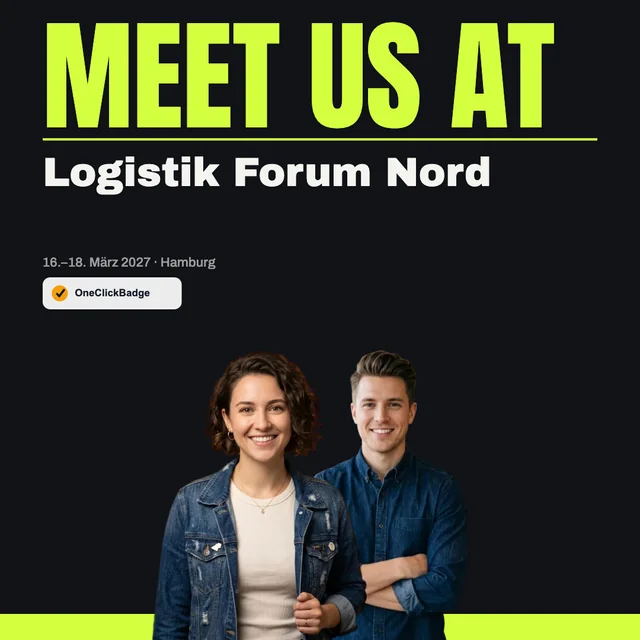
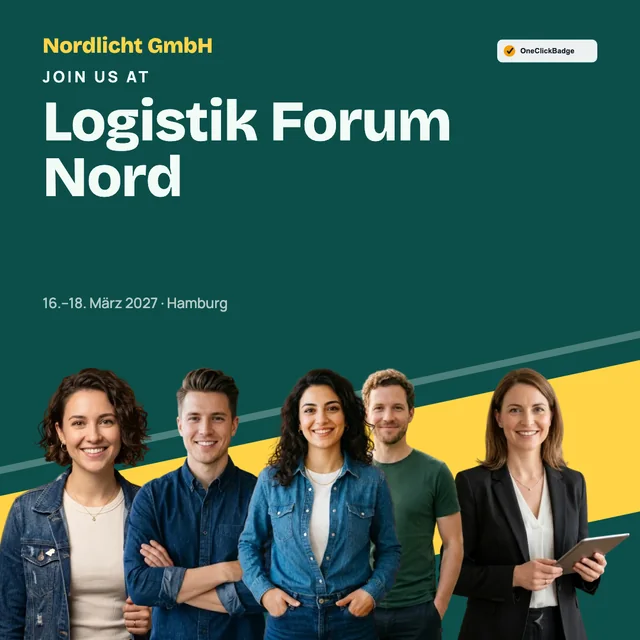
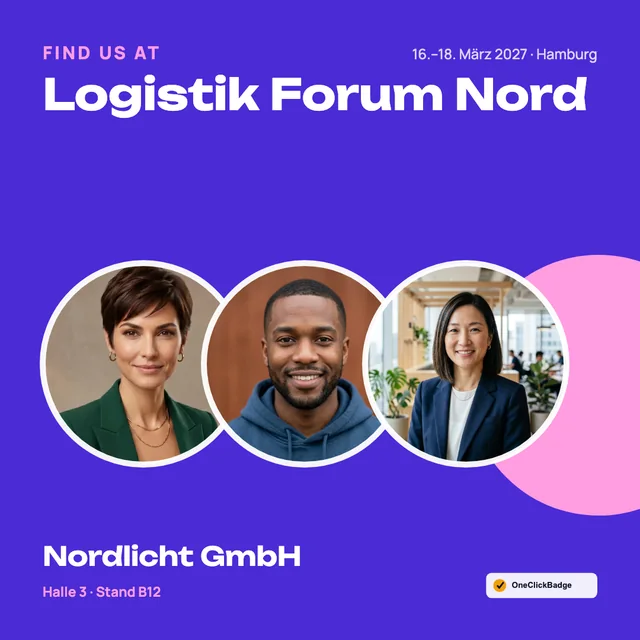
Examples from the team templates
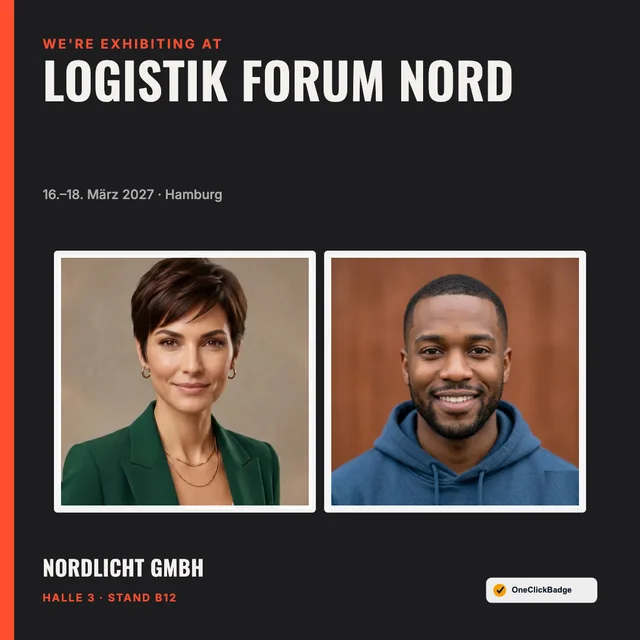
The team templates come with framed photos and with cutout people, for two people as well as for large teams. Every template comes with the line above the event name, such as “Meet us at” or “We’re exhibiting at”. The same idea works for conference sponsors, just without hall and booth.

Related
Frequently asked questions
- How many people fit on a team badge?
- A team badge currently holds up to 20 photos. The contact person decides how many when uploading, and the template adjusts the layout and size. With very large teams, the faces get small. Two images are then the better choice, for example one per booth shift.
- Does everyone on the team have to upload something?
- No. One person collects the photos, for example in the team chat, and uploads them together. The others just receive the finished image and the suggested text at the end.
- Where do the team’s photos end up?
- The photos are processed in the contact person’s browser, background removal included. They save the finished image on their device or share it with colleagues straight from there.
- Can each person also get a badge showing just themselves?
- Yes. Put both badges side by side in the shared badge selection, and each person chooses for themselves. Speakers and guests keep their own badges anyway.
- Does this also work for sponsors and partners?
- Yes. You set the name of the additional badge yourself, and the suggested post text offers “Partners and sponsors” as well as “Exhibitors”. A template without a hall and booth field is usually the better fit then.
- Can we use the team badge when we exhibit ourselves?
- Yes. Create an event for your own trade show presence and use the team badge for your own team. How to plan the weeks around the show on LinkedIn is covered in the guide on trade-fair presence on LinkedIn.