Give your event its own event page on LinkedIn
Alongside individual posts, LinkedIn has its own event feature: a fixed page for your event where people register and get reminders before the date. Used well, it becomes the hub that every announcement post links to. This guide shows how to set the event up and how a listing turns into real registrations.
Set up in four steps
On desktop, open “Events” from your home page. In the app, go through “My Network”, “Manage my network” and “Events” to create one. For a company page event, select that page as the organizer.
Check before publishing: three settings are final
LinkedIn locks in three settings when you create the event, and they can't be changed later: the organizer, the event type (online or in person) and the event format (LinkedIn Live or an external event link). If a mistake slips in here, the only fix is to delete the event and set it up again. So check these three details before you tap Publish.
What is an event on LinkedIn?
An event on LinkedIn is a dedicated page for your event, with a name, a date, a cover image and a short description. Anyone who registers joins an attendee list and gets reminders before the date. This works for on-site conferences just as well as for webinars.
The gain over a single announcement post is the fixed address. Every post, every email and every slide can link to it, and the registrations gather in one place that you keep an eye on. An event like this is set up in a few minutes; all you need in advance is the date and a cover image.
The cover image decides the first registration
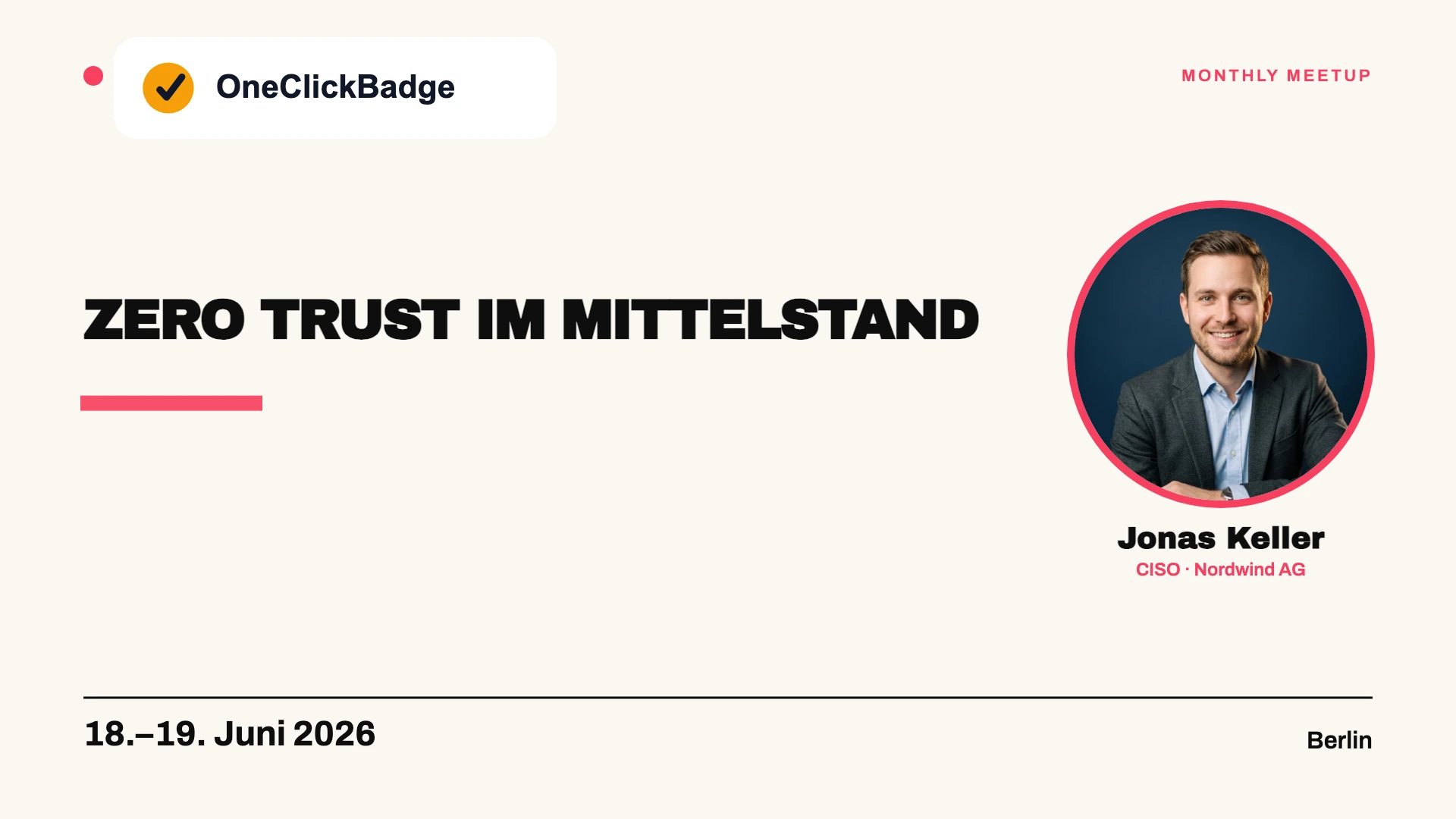
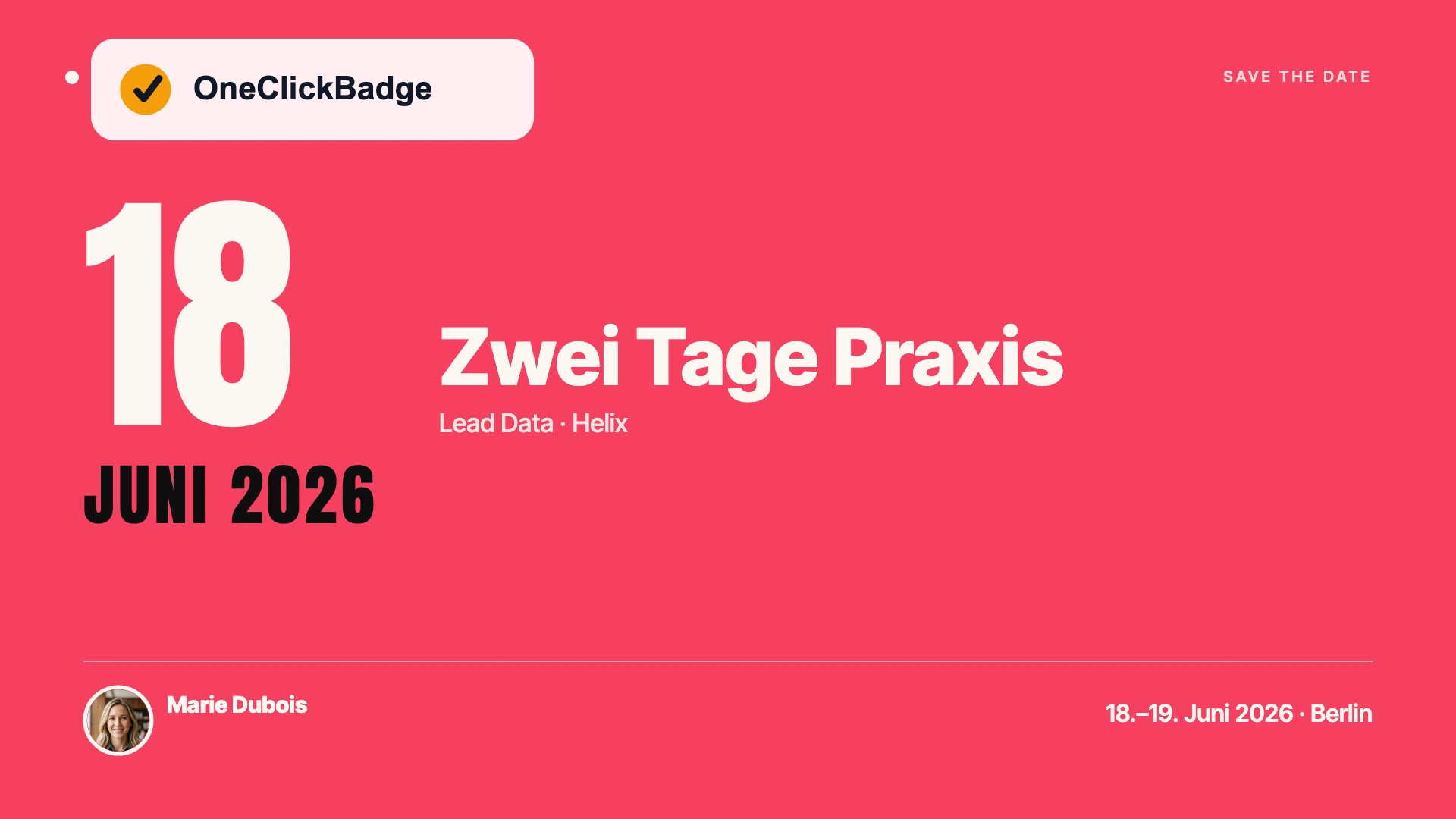
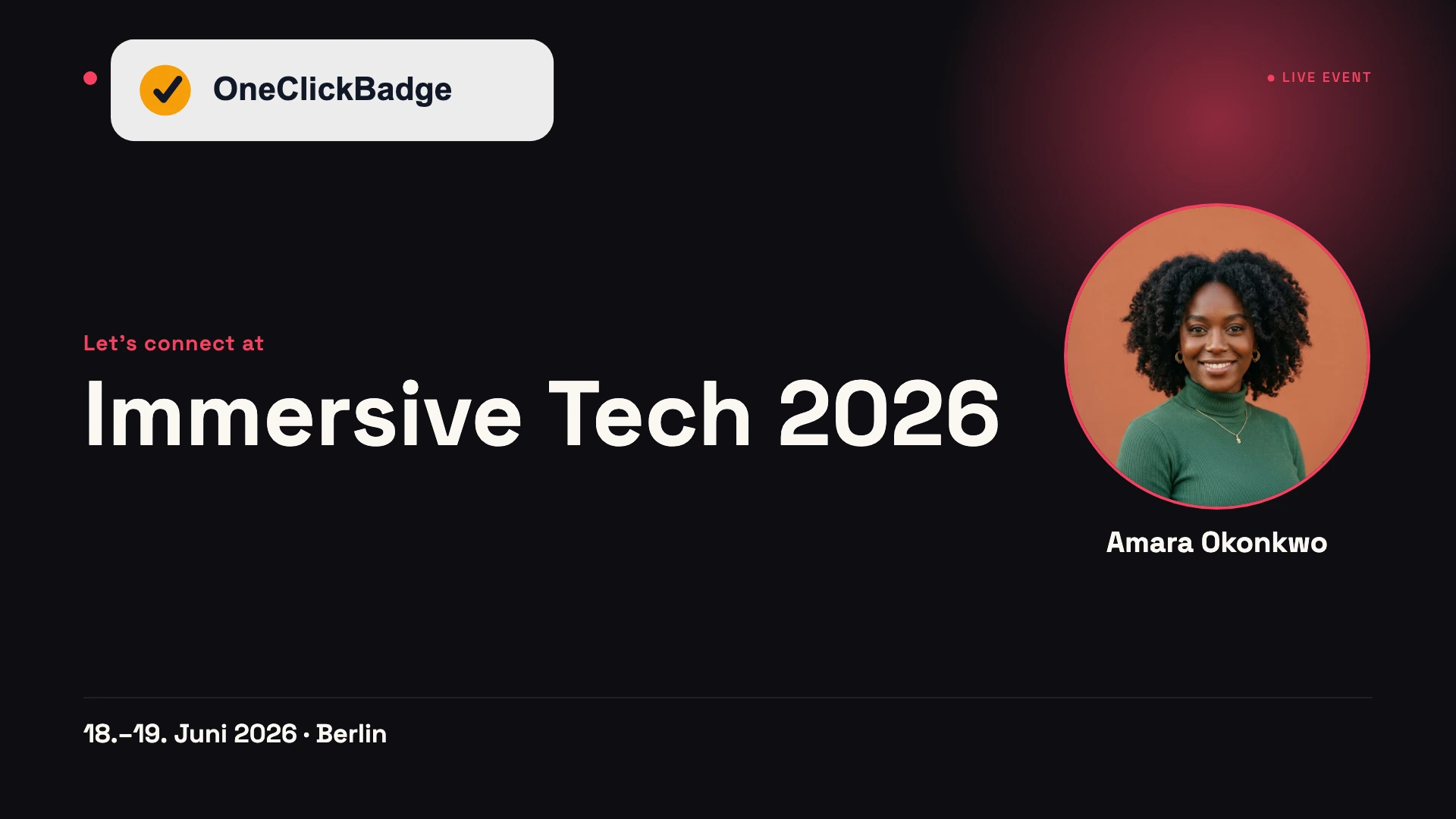
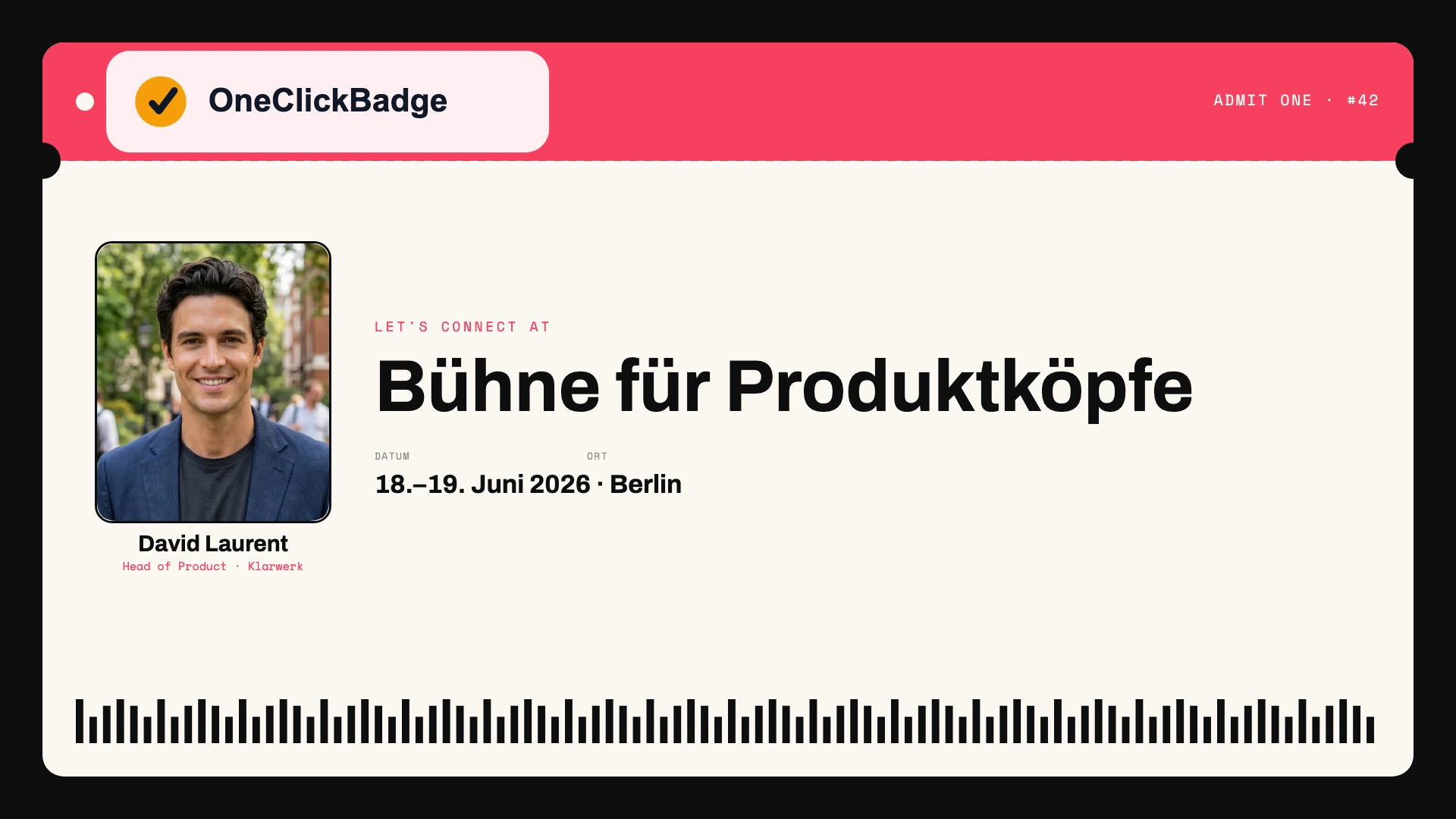
The cover image is the first thing anyone sees of the event: in the invitation, in the feed and on the event page itself. A random stock photo wastes that spot. An image in the look of your event, with name, date and a clear title, says at a glance what it is about and for whom.
In OneClickBadge, choose the 16:9 format, exactly the aspect ratio LinkedIn asks for on the event cover. The export at 1920 × 1080 pixels fits straight in as the cover. You set logo, colors and design once, and the same design shows up later on the badges your speakers and guests share. That way a consistent look runs from the event listing into the networks of your attendees.
How the listing turns into real registrations
A newly created event is an empty stage at first. Registrations only come once people hear about it and have a reason to sign up. Three levers help with that:
- Invite selectively. LinkedIn lets you invite contacts to the event directly. Invite the ones the topic really fits, because an invitation to everyone quickly feels like advertising.
- Link every announcement post. Put the event address into your announcement and save-the-date posts so that all posts lead to the same hub.
- Let your speakers share. When your speakers announce their appearance with a shareable badge, the event reaches networks you would never reach through your own channel.
Why your speakers' posts carry so much further than your company page is worked out with an example in the article on the network effect in event marketing.
How to write the event description
The description field decides whether a glance turns into a registration. Writing only “We warmly invite you” here wastes the spot. In the first two lines, name what attendees will concretely take away, because LinkedIn only shows the beginning in the preview. After that come the key details and a clear next step.
A description that does this looks something like this:
Zero Trust for midsize companies: the Security Summit 2026

In one afternoon, four practitioners show how they secure their networks without a big budget. Made for IT leads at companies with up to 500 employees.

When: Thursday, May 14, 2026, 1 to 6 p.m.
Where: Hafenforum Hamburg, Hall 2
For whom: IT leadership, admins, CISOs

Program and registration: see the link below.
Three things make the difference: the benefit comes first, the key details are readable at a glance, and one sentence says what to do next. For webinars you use the same structure, where the note about the meeting link takes the place of the location. How to turn this into posts during the event is shown on the page about posting live from your event.
From a profile or from the company page?
Both are possible, and the choice has consequences. An event from the company page feels official and stays findable as a reference, independent of any single person. An event that people invite to from their personal profile gets more registrations, because personal invitations are accepted more readily.
In practice, splitting the roles works best: the company page carries the event as the official address, and the people on your team invite from their profiles and post about it.
You can invite your first-degree connections. Company page followers learn about the event through its posts. Participants can invite their connections too. The limit of 1,000 invitations per person per week is shared across all events.
| Company page | Personal profile | |
|---|---|---|
| Impression | Official, findable long-term | Personal, closer to the audience |
| Invitations | Admins invite their own first-degree connections; followers via the page's posts | The organizer invites their own first-degree connections |
| Best for | The fixed event address | Reach through team and speakers |
Optional: capture registrations directly through LinkedIn
If you organize the event through a company page, you can switch on a LinkedIn registration form. It fills itself from the attendee's profile with first name, last name, email address, job title and company. That way someone signs up in a few clicks, and you have the contact details cleanly on hand.
A few conditions come with it. You have to provide a link to your privacy policy, and anyone who also wants to receive marketing from you confirms that with a separate checkbox. You will find the collected sign-ups later in the registration area of the event analytics and download them from there. For events from a personal profile, this feature is not available.
The listing is one piece of the plan
Setting up the event is one step of many, from the first announcement weeks out to the follow-up afterward. How to tie the listing together with posts, badges and certificates into one continuous campaign is shown in the guide to promoting your event. Bundled to take with you, the whole plan sits in the playbook.
Related
Frequently asked questions
- Does an event on LinkedIn cost anything?
- No. The event feature is part of LinkedIn and is free, for on-site as well as online events. Costs only arise if you additionally promote the event with paid ads, and that is optional.
- What is the difference between an event and a normal post?
- A post shows up in the feed once and moves on. An event is a lasting page with a date, an attendee list and automatic reminders. It works best to use both: the event as the fixed address, the posts as occasions to point to it again and again.
- Do we need a company page on LinkedIn?
- No, an event can also be set up from a personal profile. A company page has the advantage that the event feels official and stays findable independent of any single person.
- Can we run an online event through it?
- You can announce it and collect the registrations, and you store the link to the meeting room in the event. The broadcast itself runs through your webinar tool. For proof afterward, a webinar certificate is a good fit.
- How do I invite specific people to my event?
- On desktop, open the event and choose “Share”, then “Invite”. In the app, use “Invite”. Select suitable first-degree connections. The limit of 1,000 invitations per person per week applies across all events combined.
- Can I still edit the event after publishing?
- Partly. Before it starts, you can change a lot: name, cover image, description, date, time, time zone and speakers. What can no longer be changed are the organizer, the event type and the event format. Once the event has started, no changes are possible at all. So set the key details right from the start, and change the date only in an emergency, because it unsettles the people who registered.
Sources
- LinkedIn Help: create an event and cover image dimensions
- LinkedIn Help: invite contacts to an event
- LinkedIn Help: unchangeable event settings
- LinkedIn Help: registration forms for events from pages
Details about external platforms last checked on October 2, 2026.