Templates for event badges your people share
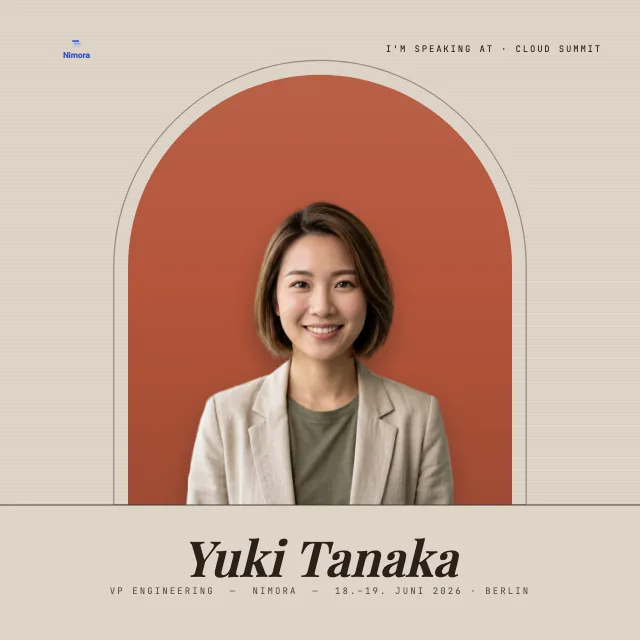
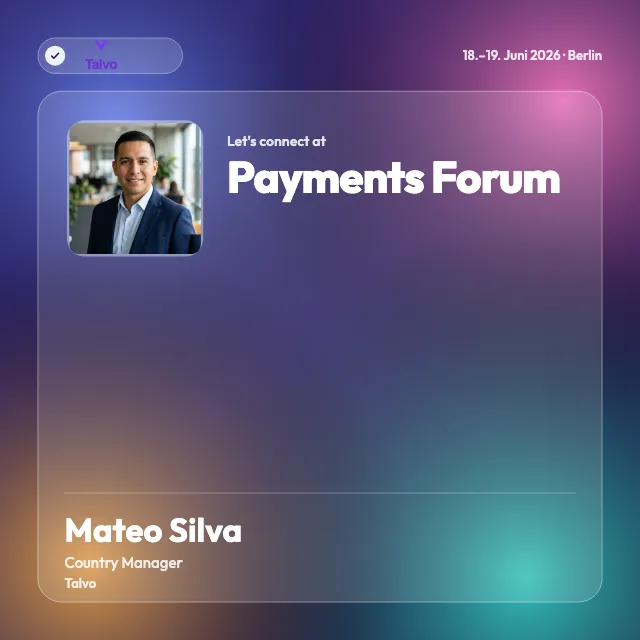
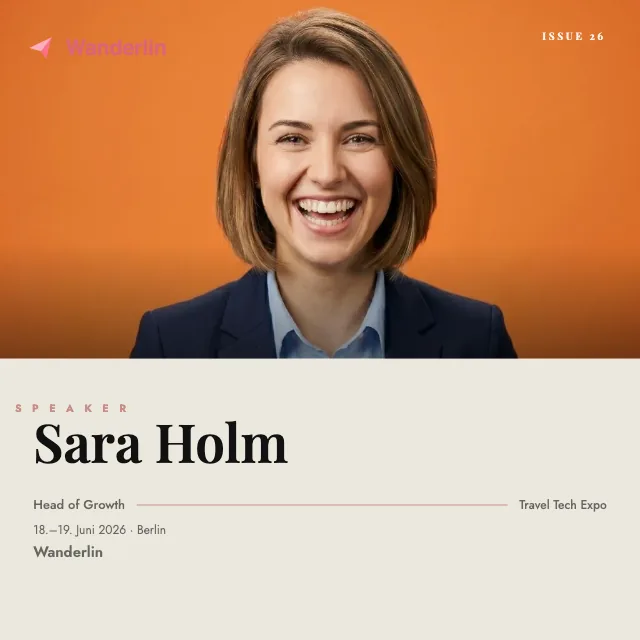
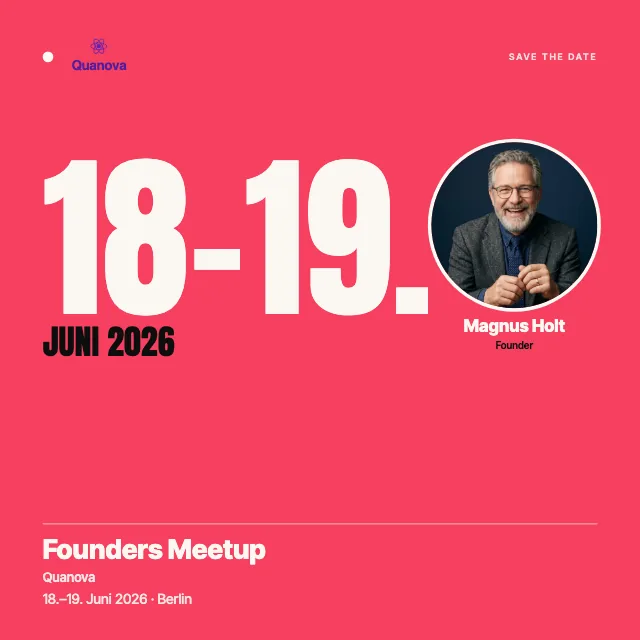
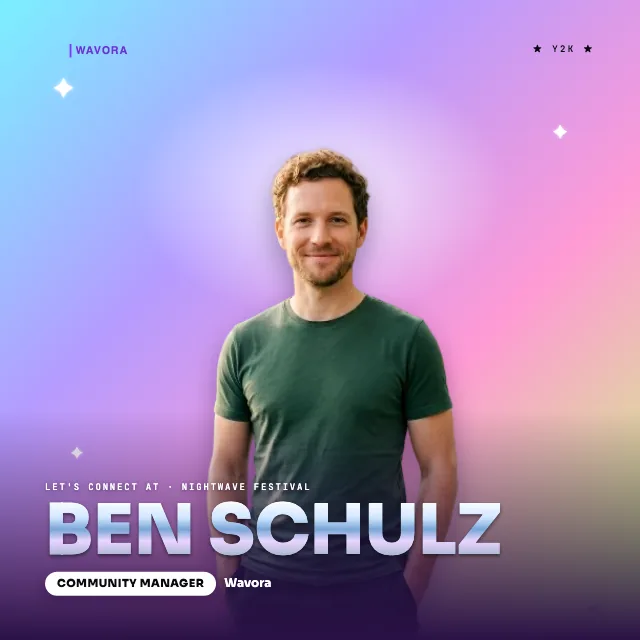
A good event lives on people talking about it. This gallery gathers templates for digital badges that your speakers, guests and exhibitors post on LinkedIn to announce that they're taking part. You pick a style, set your logo and your colors, and the rest happens with your people.
15 templates at a glance, from calm layouts to loud ones
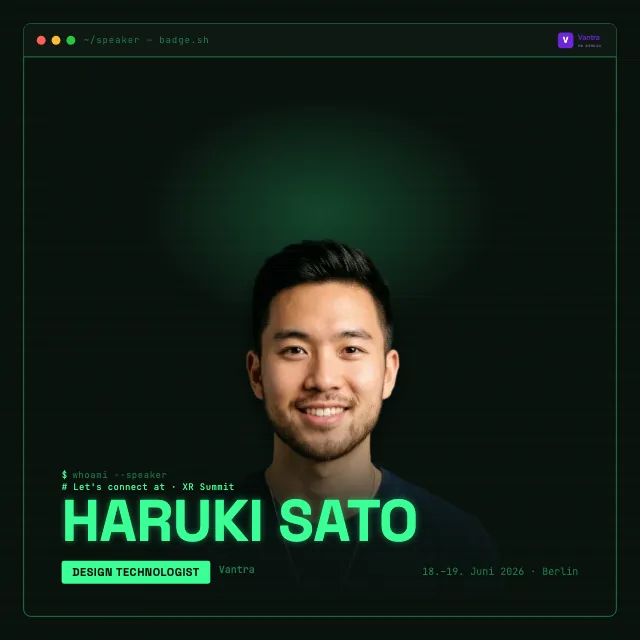
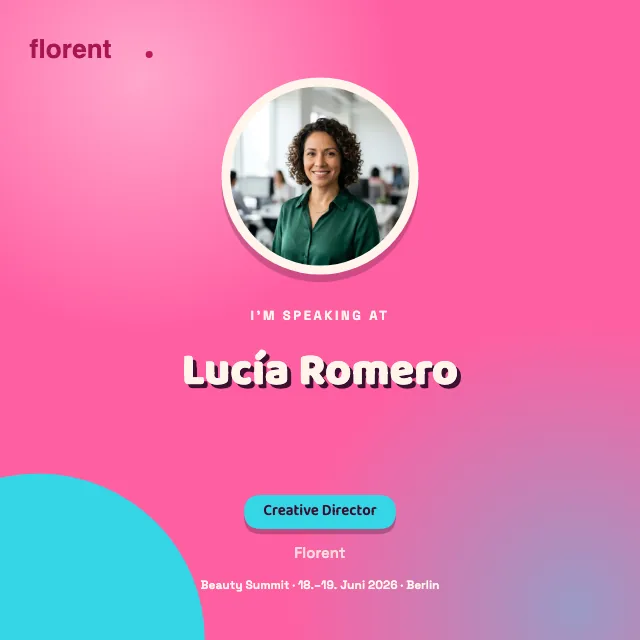
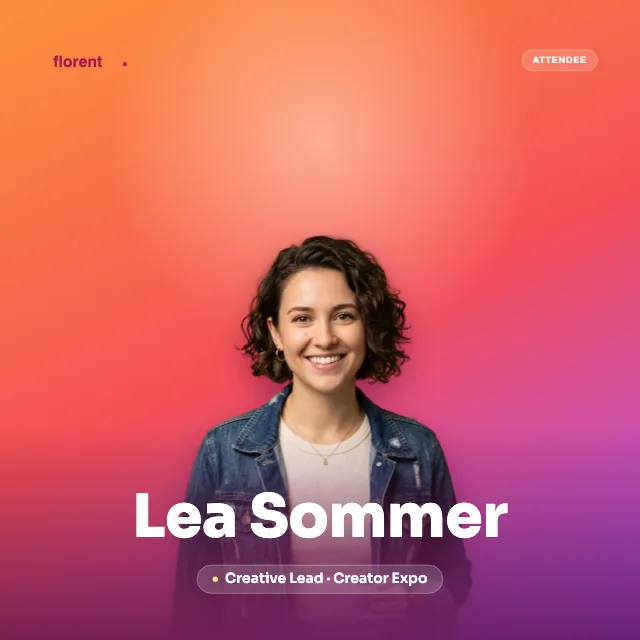
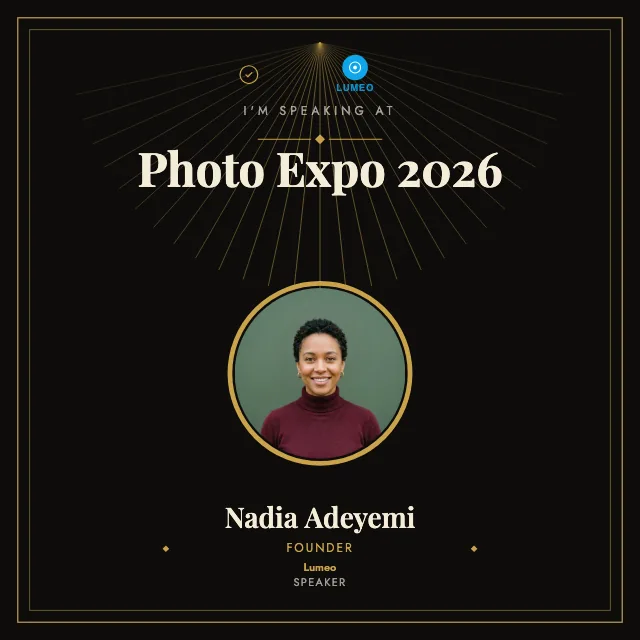
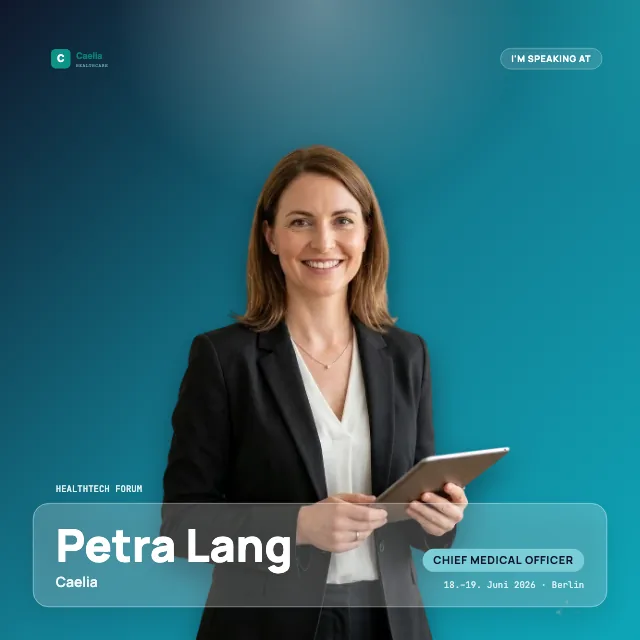
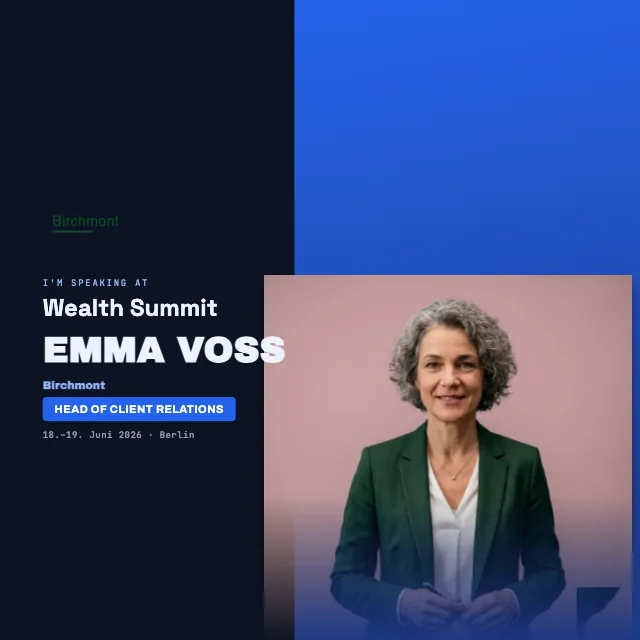
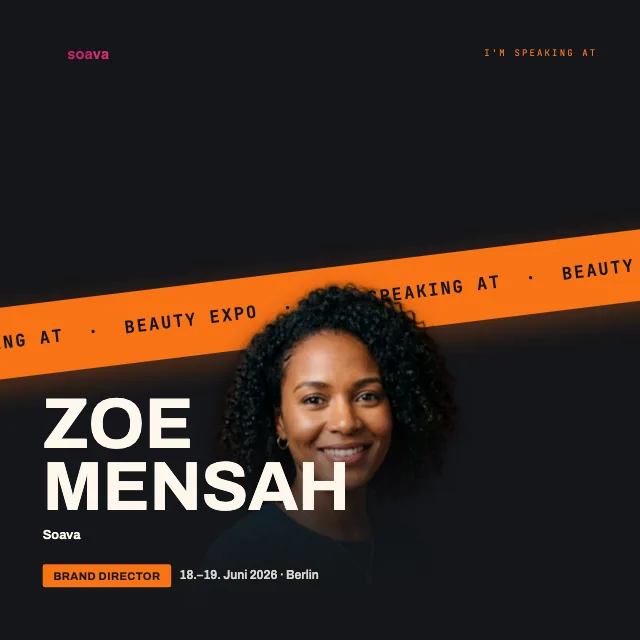
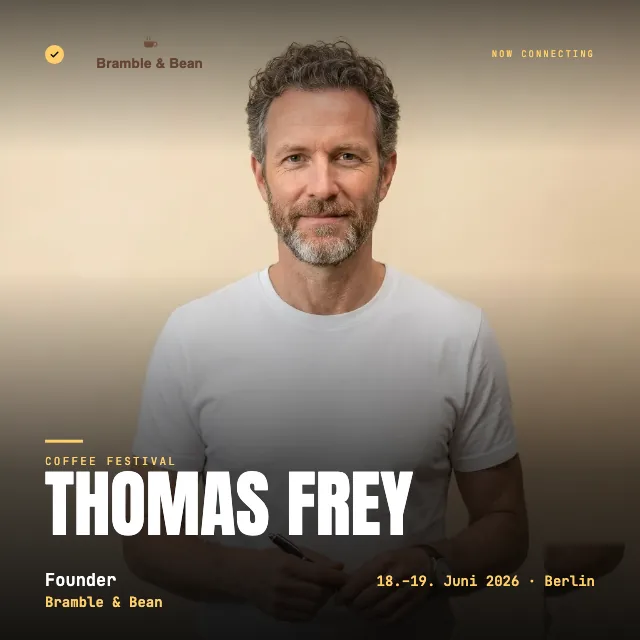
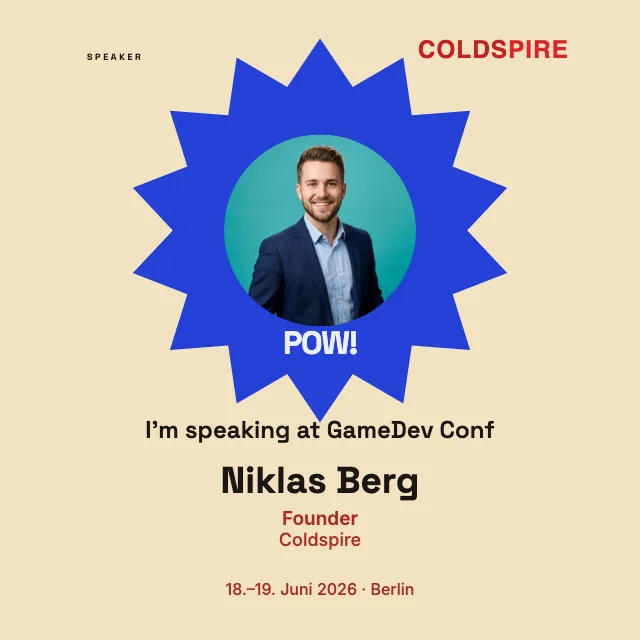
The style matters more than you'd think. Plain layouts with plenty of white space feel serious and suit specialist conferences, while elegant variants with calm typography lean toward an award or a festive format. For festivals and lively community formats it can get louder, with bold colors that stand out in the feed.
Dark layouts look especially good on a phone and give tech and startup topics the right stage. And then there are templates with lots of room for the photo, where the face of the person taking part is front and center. In the end what counts is that the badge fits your brand and doesn't look like an off-the-shelf template. If you have speakers, take a look at the “I'm speaking” template, and for companies and teams at a booth, the “We're attending” template.
The 15 designs are selected examples. The editor contains more templates and lets you add shapes, decorations, gradients and text looks. Photo adjustments and aligning multiple elements help make the design your own.

Shareable badges that outlast the lanyard
An event badge here is an image your people willingly put on their profile on LinkedIn because they want to show they're taking part. Printed name tags hang from a lanyard and go in the trash at the end of the day. A digital badge stays in the feed and reaches exactly the people you want to win over for your next event.
The process is deliberately simple. You design a badge in the look of your event, send a link to your speakers and exhibitors, and they add their photo and name. No one needs an account. You keep control of the design, and your people keep control of their photo. The speaker badge page describes the starting point for presenters in detail.
Passes for the lanyard at the reception desk.
An image your people post on LinkedIn themselves.
Your badge in three steps
First, you pick a template that fits the occasion. Second, you make it yours by uploading your logo, entering the title and date, and setting the colors to your brand. A neutral template turns into a badge that clearly looks like your event.
Third, you share a link. Your speakers and exhibitors open it, drop in their photo and post the finished badge. You don't have to explain anything to anyone or send files back and forth. Once you've set the layout, it applies to all your guests the same way, and yet every badge looks personal thanks to its own photo. When you want to set up your event in full, with a certificate and everything around it, the onboarding walks you through it step by step.
In the video, a template becomes your own badge in the real editor: placing the logo, setting colors by hex code, adjusting font and layout, and checking the result with a test name and photo.
Four formats, from square to landscape
Design a template in 1:1 for square posts, 4:5 for extra height, 9:16 for stories or 16:9 for wide visuals. You set the aspect ratio as the organizer in the editor.
This format stays the same when downloaded. Guests choose image resolution and video, if offered. You can provide several finished variants through a shared selection page.
To match the badge, you can design the page where your guests download it: Customize the recipient page and link preview.
Related
Frequently asked questions
- Do I need an account to get started?
- Not for designing and trying it out. You pick a template, fill it with your logo and your colors, and see your badge in full before you commit. Your people download the finished image with no watermark, and no one needs an account for that.
- Do your guests need an account?
- No. Your speakers, guests and exhibitors open the link, upload their photo, type their name and post the badge. There is no sign-up and no password for them. Only you as the organizer work on the design in the editor.
- Can the logo and colors be matched to your brand?
- Yes. The template is only the starting point: the logo, color scheme, title and date come from you, so the finished badge clearly carries your event's own look.
- Which formats are there?
- 1:1, 4:5, 9:16 and 16:9. You prepare the aspect ratio in the editor. Guests cannot change it during download.